
Windows 10 support has ended, but does that mean you need a new computer? Here is how to check your hardware, understand Windows 11 requirements and make a better decision before replacing your device.
Photo: Rui Silvestre / Unsplash. A Windows laptop in an everyday workspace.
Your computer might still work perfectly fine. It starts up, runs your favourite programs and helps you get through your day. But there is one problem: it is still running Windows 10.
For millions of computer users, the end of Windows 10 support has raised an important question. Is their current computer still good enough, or is it time to replace it?
On October 14, 2025, Microsoft officially ended support for Windows 10. This means most Windows 10 computers no longer receive regular security updates, software fixes or technical support. While the operating system continues to function, using an unsupported computer can create security risks.
The move to Windows 11 also introduced stricter hardware requirements. As a result, some computers that still work well for everyday tasks cannot officially upgrade.
Before replacing your computer, it is worth understanding what has actually changed, what hardware Windows 11 requires and whether your current device still has a future.
What changed after Windows 10?
For over a decade, Windows 10 helped people work, study and stay connected. Its end of support marks a significant change, especially for people who rely on older computers.
The biggest concern is security.
Windows regularly receives updates that address software problems and newly discovered security vulnerabilities. Without these updates, computers can become more vulnerable to viruses, malware and other cybersecurity threats.
An unsupported operating system doesn’t mean your computer suddenly stops working. You will still be able to browse the internet, open documents and use familiar applications. However, continuing without security updates can become increasingly risky.
Microsoft offers an Extended Security Updates program for eligible Windows 10 devices. For personal computers, the program provides important security updates until October 13, 2026. This gave qualifying users additional time to plan their next steps.
However, extended security updates are a temporary solution, not a permanent replacement for moving to a supported operating system.
That is why understanding your computer's hardware matters more than ever.
What hardware does Windows 11 require?
One of the biggest differences between Windows 10 and Windows 11 is the hardware needed to run the operating system.
Microsoft introduced additional requirements intended to improve security, reliability and compatibility. Even if your computer runs Windows 10 without problems, it may not meet these newer standards.
According to Microsoft's official Windows 11 system requirements, a compatible computer must meet several minimum specifications.
Processor: A compatible 64-bit processor with at least two cores and a clock speed of 1 GHz or faster. Many supported Intel Core processors are 8th generation or newer, although eligibility depends on the specific processor model.
Memory (RAM): At least 4 GB of RAM. While this meets the minimum requirement, 8 GB or more may provide a more comfortable experience when running several everyday applications.
Storage: At least 64 GB of available storage capacity is required for installation. Additional space may be necessary for updates, applications and personal files.
TPM 2.0: A Trusted Platform Module is a security feature that helps protect sensitive information and supports functions such as device encryption.
Secure Boot: Windows 11 requires UEFI firmware with Secure Boot capability. This feature helps protect a computer during startup by checking that trusted software is being loaded.
Graphics and display: The device also needs compatible graphics hardware and a display that meets Microsoft's minimum specifications.
These requirements are not just about how quickly your computer runs. They also help determine whether the device can support the security features built into Windows 11.
Why can't some older computers upgrade?
Imagine owning a laptop that still handles emails, school assignments and video calls without any major problems. You check whether it can run Windows 11, only to discover that it is not compatible.
How can a computer that still works be considered outdated?
The answer often comes down to hardware compatibility rather than everyday performance.
A computer may have enough RAM and storage but use an unsupported processor. Another device might have a suitable processor but lack TPM 2.0 or the required Secure Boot capability.
In some situations, these security features may already exist but need to be enabled through the computer's firmware settings. In others, the hardware itself is simply too old.
This difference is important because adding more RAM or installing a faster storage drive does not automatically make a computer eligible for Windows 11.
At ReuseTechBC, we must follow Microsoft's authorized refurbishment requirements. As a Microsoft Authorized Refurbisher, we only install or upgrade devices to Windows 11 when they meet Microsoft’s compatibility requirements, including the requirement for 8th-generation Intel Core processors or newer.
This means we cannot simply bypass Windows 11 requirements to make an older computer eligible for refurbishment.
But that does not mean every older computer has to immediately become electronic waste.
How can you check if your computer is compatible?
Before making any decisions, start by finding out what hardware your computer currently has.
You do not need to be a computer expert to complete an initial compatibility check.
Microsoft provides a free application called PC Health Check. The tool examines your computer and helps determine whether it meets Windows 11's minimum requirements.
To get started:
Download or open Microsoft's PC Health Check application.
Find the Windows 11 eligibility section.
Select Check now.
Review the results to see whether your device meets the requirements.
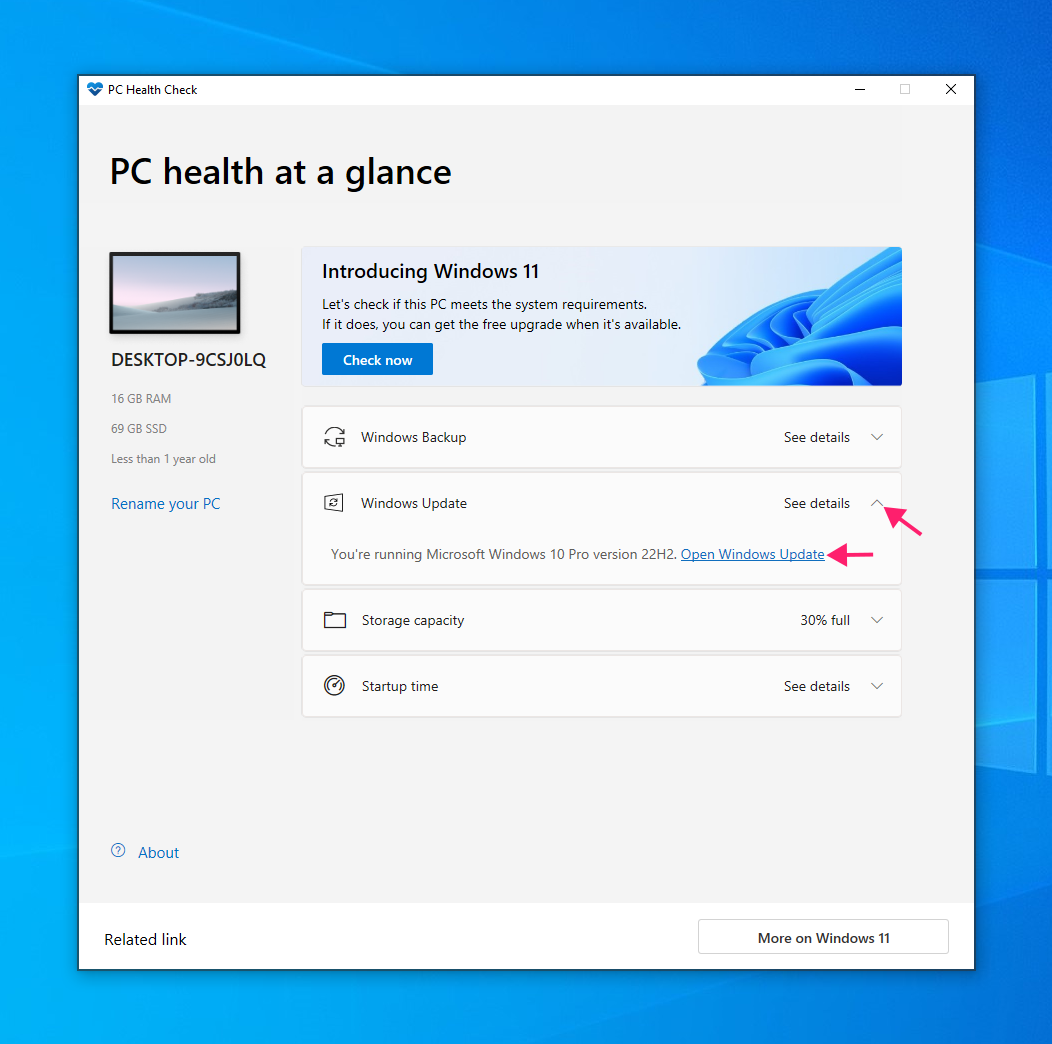
Screenshot: Microsoft PC Health Check helps you check Windows 11 compatibility.
If your computer is compatible, you can check Windows Update for an available upgrade.
If it doesn’t qualify, the application can help identify which requirements are preventing the upgrade.
You can also check your computer's specifications by opening Settings, selecting System and then About. This shows information such as your processor model and installed RAM.
Knowing exactly what your computer has makes it easier to understand your options rather than assuming it needs replacing.
Should you upgrade, refurbish or replace your computer?
Discovering that your computer is getting older does not automatically mean you need to buy something new.
The right decision depends on your hardware, software requirements, budget and how you use the device.
1. Upgrade when your hardware is compatible
If your computer officially supports Windows 11, upgrading the operating system may be the simplest option.
Before upgrading, back up your important files and confirm that the programs you rely on are compatible with Windows 11.
It is also worth checking your computer's general condition. An older laptop with a failing battery or limited storage may need additional attention even if its processor meets Windows 11 requirements.
If the computer already performs well and supports the new operating system, replacing it may be unnecessary.
2. Consider refurbishment when it makes sense
Sometimes, a computer's biggest problem is not its age but the condition of its components.
A slow computer might benefit from additional RAM, a solid-state drive (SSD) or general maintenance. A laptop with a worn battery might still have useful life ahead after a suitable repair.
However, these improvements do not remove Windows 11's processor and security requirements.
Before investing in repairs, consider whether the device can continue running supported software and whether the cost is reasonable compared with a replacement.
Refurbishment can also be a practical option when purchasing technology. A professionally refurbished computer can provide a more affordable alternative to buying new equipment, particularly for everyday tasks.
3. Replace when your needs or software require it
There are situations where replacement is the better decision.
If your computer can’t support a suitable operating system, regularly struggles with essential tasks or requires expensive repairs, moving to a compatible device may make more sense.
But replacing your computer does not always mean buying a brand new one.
A refurbished Windows 11-compatible computer may provide the performance and security features you need without the cost of the latest model.
Before buying, compare the processor, RAM, storage, battery condition and software compatibility. Choose a device based on what you actually need rather than simply purchasing the newest option.
Where ReuseTechBC fits in
At ReuseTechBC, we believe technology should continue creating value for as long as it reasonably can.
Through our refurbishment programs, eligible donated computers are assessed, prepared for reuse and made available to schools, organizations and individuals who need affordable technology.
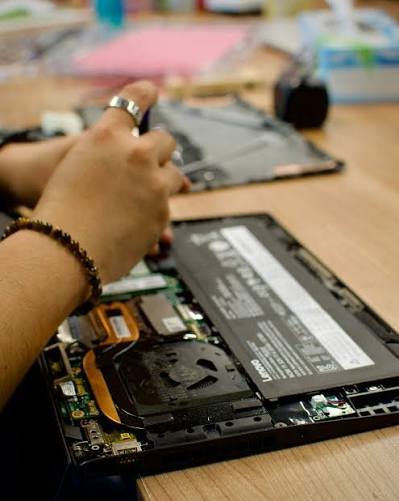
Photo: Albert Vinas / Unsplash. A technician assessing a laptop for repair (stock photo).
The transition from Windows 10 to Windows 11 has made hardware compatibility an important part of this work.
As a Microsoft Authorized Refurbisher, we follow specific requirements when preparing Windows computers. Our technology donation guidelines currently specify 8th-generation Intel Core processors or better for PC laptops and desktops, alongside Windows 11 compatibility.
Technology that cannot be reused through our programs is responsibly recycled.
If your workplace is replacing computers, consider reviewing their specifications before arranging a donation. Devices that we can refurbish may still be valuable to another person or organization.
For schools and organizations as well as eligible individuals looking for affordable technology, our computer request programs explain the equipment and eligibility options available.
A computer that has finished its job in one workplace may still have years of useful work ahead somewhere else.
A few questions before you replace your computer
Can I still use Windows 10 after support has ended?
Yes. Your computer will continue to function, but most Windows 10 installations no longer receive regular security updates. Extended security updates ended on October 13, 2026.
Will adding more RAM make my computer compatible with Windows 11?
Not necessarily. Additional RAM may improve performance, but Windows 11 also requires a supported processor, TPM 2.0 and Secure Boot capability. All requirements must be considered.
Do I need a brand-new computer to use Windows 11?
No. A compatible refurbished computer can run Windows 11 and may provide everything you need for school, work and everyday use.
Give your computer a future beyond Windows 10
The end of Windows 10 support does not mean every older computer has reached the end of its useful life. However, it does mean that computer owners need to think more carefully about security, software support and hardware compatibility.
Before replacing your device, check whether it supports Windows 11, consider whether a suitable upgrade or repair makes sense, and explore refurbished alternatives if replacement is necessary.
If you have computers that your household or workplace no longer needs, review ReuseTechBC's donation check list.
Your next computer does not necessarily have to be brand new, and your current one may still have something to offer.
